
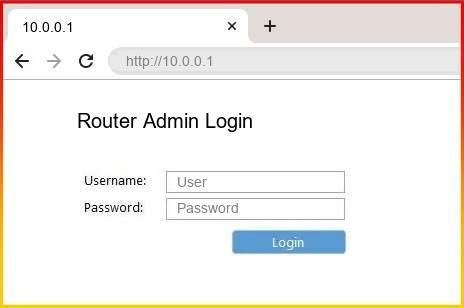
Quezon, Philippines, November 4, 2026 -- Log in to the Piso WiFi portal at the IP address 10.0.0.1. You need to connect to the correct Piso WiFi network and follow the required steps to start an internet session. This article explains how to access the login portal, resolve common connection issues, and understand the difference between user login and administrator login pages. If you have questions about accessing a Piso WiFi network, this guide can help.
What Is 10.0.0.1 Piso WiFi Login?
The 10.0.0.1 Piso WiFi login page is a local network address that may be configured as the gateway or portal address for a Piso WiFi hotspot.
Piso WiFi is a pay-per-use internet service popular in the Philippines. Many setups allow users to insert coins or purchase browsing credits to access the internet for a specific period.
Depending on the device and software configuration, the local portal may allow users to:
- Access the Wi-Fi login page.
- Purchase or activate browsing time.
- Check available browsing credits or remaining session time.
- Pause and resume browsing when the system supports this feature.
- View connection instructions.
- Access voucher or account login options, if enabled.
Important: The address 10.0.0.1 does not work for every Piso WiFi network. The network operator must configure it as the correct gateway or portal address. Some systems use a different IP address or a custom login URL.
How to Access 10.0.0.1 Piso WiFi Login
Accessing the Piso WiFi portal is generally straightforward when your device is connected to the correct hotspot.
Follow these steps to open the login page.
Step 1: Connect to the Piso WiFi Network
Turn on Wi-Fi on your phone, tablet, or computer.
Look for the network name (SSID) associated with the Piso WiFi hotspot you want to use. Select the network and connect.
Some hotspots are open networks, while others require a password. Follow the instructions provided by the operator.
Step 2: Open Your Web Browser
Once connected, open a browser such as Google Chrome, Safari, Microsoft Edge, or Firefox.
You do not necessarily need an active internet connection to open a local gateway page. Your device only needs a working connection to the local network hosting the gateway.
Step 3: Enter the Correct IP Address
Tap or click the browser's address bar and enter:
http://10.0.0.1
Press Enter or Go.
Make sure you enter the address in the address bar rather than the search bar.
If your Piso WiFi provider has supplied a different portal URL, use that address instead.
Step 4: Wait for the Login Portal to Load
If 10.0.0.0.1 is the correct IP address and the device is working properly, the Piso WiFi login page should appear.
Depending on the system, you may see options for inserting money, purchasing browsing time, entering a voucher, logging in, or managing an active session.
Step 5: Activate Your Browsing Session
If payment is required, follow the portal's instructions to pay for access or start your session.
Wait for the system to confirm that your browsing time has been activated. Then open a new browser tab and visit a website to test your connection.
Remember that connecting to Wi-Fi does not necessarily mean your internet session has been activated.
How to Log In to the Piso WiFi Portal Using a Phone
Many Piso WiFi users access the portal through an Android phone or iPhone. The process is similar on both devices.
1. Open Settings and turn on Wi-Fi.
2. Connect to the appropriate Piso WiFi network.
3. If a sign-in notification appears, tap it to open the captive portal.
4. If no notification appears, open your web browser manually.
5. Type http://10.0.0.1 in the address bar.
6. Follow the instructions to activate your internet session.
7. If the page does not load, confirm that your phone is connected to the correct Piso WiFi network.
You can also temporarily disable mobile data to help ensure that your browser is using the Wi-Fi connection rather than your cellular connection.
What Is the Difference Between the Piso WiFi User Portal and Admin Login?
One common source of confusion is the difference between the customer login page and the router's administrator dashboard.
Although both interfaces may use local network addresses, they serve different purposes.
Piso WiFi User Portal
The user portal is designed for customers who want to use the hotspot.
Depending on the setup, it may allow users to activate browsing credits, enter vouchers, check remaining time, or manage their sessions.
You typically do not need administrator credentials to access the public user portal.
Piso WiFi Admin Dashboard
The administrator dashboard is intended for the owner or authorized operator of the Piso WiFi device.
Depending on the software and system, it may provide access to:
- Network and hotspot settings.
- User and voucher management.
- Pricing and browsing-time rules.
- Coin-slot and payment configuration.
- Usage reports and system information.
- Portal customization and other administrative options.
The administrator interface may use the same gateway address, a different port, or a separate URL. Its exact address depends on the device and software configuration.
Typing 10.0.0.1 does not automatically guarantee access to the administrator dashboard. Follow the official instructions for your particular device and use only authorized credentials.
How to Check Remaining Piso WiFi Time
Some Piso WiFi systems provide a feature for checking the remaining time in an active session.
To check your remaining time:
1. Connect to the same Piso WiFi network you used to start your session.
2. Open the local portal using the configured gateway address.
3. Look for a section showing remaining time, session status, or available credits.
4. Follow the instructions displayed on the page.
Conclusion
The 10.0.0.1 Piso WiFi login page may provide access to a hotspot's user portal, where customers can activate browsing time, check their session status, and use other available features.
To access it, connect to the correct Piso WiFi network, open a browser, and enter http://10.0.0.1. If the page does not load, verify the gateway address, reconnect to the network, and check whether the hotspot is working properly.
FAQs
Can I use 10.0.0.1 to access the Piso WiFi administrator dashboard?
Possibly. Some systems use this address for administrative access, while others use a different URL or port. The administrator interface also requires appropriate authorization.
How do I pause my Piso WiFi browsing time?
If the device supports pausing, open the portal and select the available pause option. Not all Piso WiFi machines offer this feature, and the operator determines how it works.
Contact Info:
Name: Justin
Email: Send Email
Organization: Piso Wifi
Address: 215 Bignay, Project 2, Quezon City, 1102 Kalakhang Maynila, Philippines
Phone: +63 917 123 4567
Website: https://100001ip.com.ph/
Release ID: 89208310
If you detect any issues, problems, or errors in this press release content, kindly contact error@releasecontact.com to notify us (it is important to note that this email is the authorized channel for such matters, sending multiple emails to multiple addresses does not necessarily help expedite your request). We will respond and rectify the situation in the next 8 hours.
Source: MarketersMedia


Leave a comment
Comments are closed on this post.