
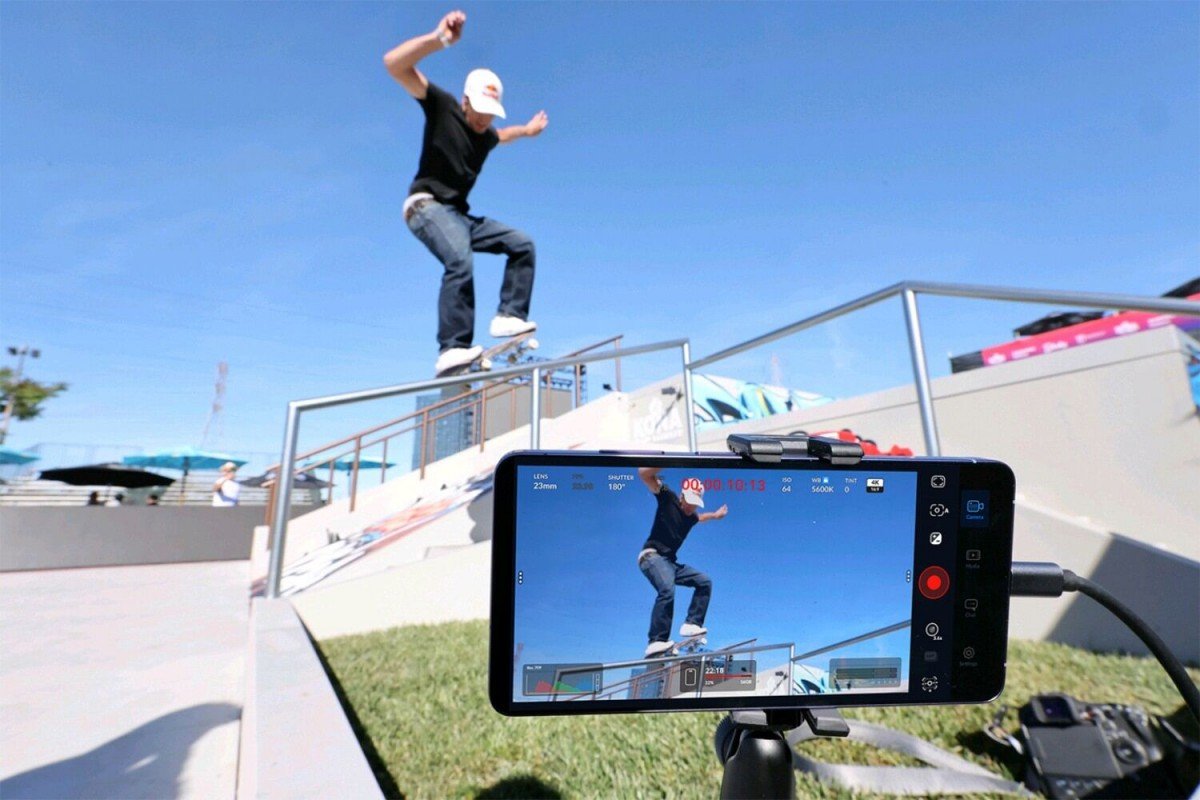
Great content isn’t just about a good camera anymore. You need steady footage, creative control, editing tools and an easy way to share. Most creators would also rather not lug around a camera, a gimbal and a laptop.
The Samsung Galaxy S26 Ultra can handle a lot of that on its own. Whether you’re a budding photographer, a travel vlogger or a full-time creator, here are six ways to get more out of it.
1. Keep your footage steady with Horizontal Lock
Chasing your pet, cycling down a trail, squeezing through a pasar malam or filming at a concert: these are great moments to capture, but shaky video can ruin them.
Super Steady with Horizontal Lock uses the phone’s gyroscope and accelerometer to keep your horizon level, even if the phone tilts or rotates a full 360 degrees. It’s handy when walking down stairs, filming from a car or grabbing a quick action shot, all without a gimbal.
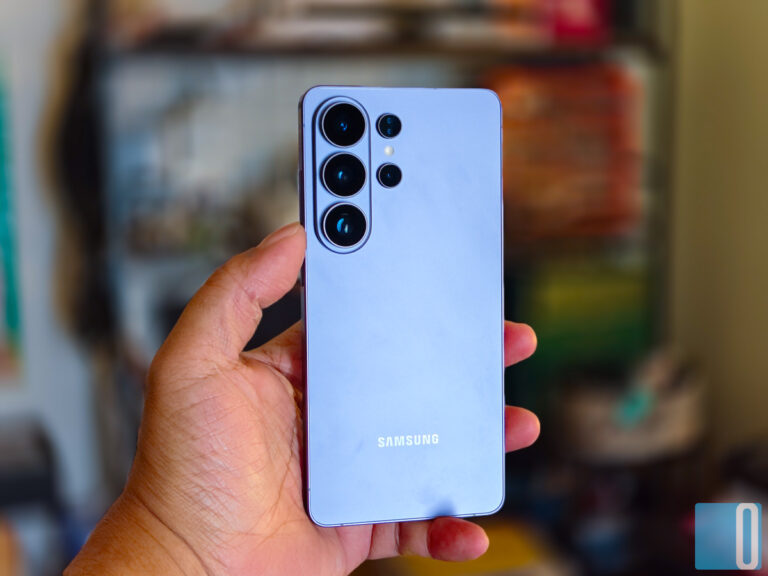
The camera system backs this up with:
- 200MP main camera for loads of detail and room to crop
- 50MP ultra-wide
- 50MP telephoto with 3x and 5x optical zoom
2. Take control with Pro and Pro Video
Want more than point-and-shoot? Pro and Pro Video modes let you adjust ISO, shutter speed, focus and white balance yourself.
Pro Video also supports:
- 8K at 30fps
- 4K at up to 120fps for smooth slow motion
- The new APV (Advanced Professional Video) codec, designed to keep quality intact even after repeated editing
For photographers, Samsung’s Expert RAW app adds more manual controls and RAW shooting. Third-party apps like ProShot and MotionCam Pro are worth exploring for more advanced workflows.
3. Edit photos with Galaxy AI
Getting the shot is only half the job. With Photo Assist, you can describe the edit you want in plain language: remove an object, move a subject or add new elements. Creative Studio lets you make your own stickers and visual assets.
For finer control, try:
- Adobe Lightroom for colour grading, exposure and RAW editing
- Snapseed or Adobe Photoshop Express for quick touch-ups
4. Edit videos right on your phone
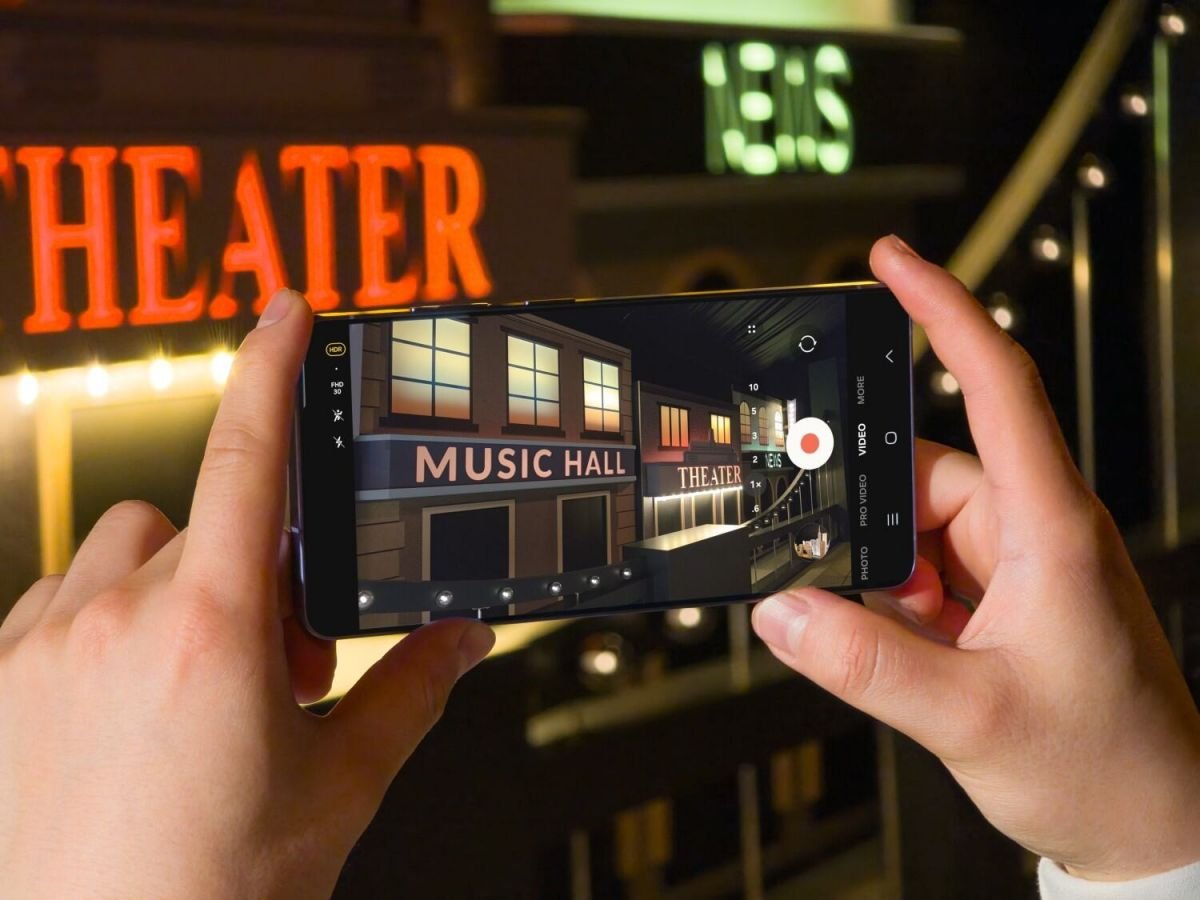
You don’t need a desktop editor to make great social content. CapCut and VN Video Editor handle trimming, transitions, effects and subtitles for short-form videos.
Blackmagic Camera is also worth a look for its pro-style recording controls and DaVinci Resolve integration, though check it supports the S26 Ultra first. Otherwise, Samsung’s own Pro Video mode covers most needs.
5. Create for every platform from one shoot
With multiple focal lengths, a high-resolution sensor and flexible recording options, one shoot can give you material for Instagram Reels, TikTok, YouTube Shorts and longer videos.
Use Canva for thumbnails and social graphics, and stick to the same Lightroom presets and CapCut templates to keep your look consistent across platforms.
6. Shoot, edit and share on one device
The biggest advantage is having it all in one place. Shoot a 200MP photo, edit it with Galaxy AI, cut a video and share it with Quick Share, all without switching devices.
Galaxy S26 series rebate: up to RM700 off
Until 31 December 2026, Samsung is offering rebates of up to RM700 on the Galaxy S26 series:
| Model | Storage | RRP | Rebate | After rebate |
|---|---|---|---|---|
| Galaxy S26 Ultra | 1TB | RM8,399 | RM700 | RM7,699 |
| Galaxy S26 Ultra | 512GB | RM6,799 | RM700 | RM6,099 |
| Galaxy S26 Ultra | 256GB | RM5,999 | RM700 | RM5,299 |
| Galaxy S26+ | 512GB | RM6,199 | RM600 | RM5,599 |
| Galaxy S26+ | 256GB | RM5,399 | RM300 | RM5,099 |
| Galaxy S26 | 512GB | RM5,499 | RM600 | RM4,899 |
| Galaxy S26 | 256GB | RM4,699 | RM300 | RM4,399 |
Find out more on Samsung Malaysia’s Galaxy S26 series offer page.

Leave a comment