

If you’ve ever looked at an old photo and wished it could just… move, the HONOR 600 Pro might be the phone you’ve been waiting for. One of the headline AI features coming with the HONOR 600 series is AI Image to Video 2.0, and after spending some time with it, I have quite a bit to say.
Let me break it all down for you.
What Is AI Image to Video 2.0, Exactly?
Before we get into what’s new, a quick bit of background. HONOR first rolled out the original AI Image to Video feature on the HONOR 400 series, and users absolutely ran with it. We’re talking over 13.4 million seconds of AI-generated video content produced on that one series alone. That’s a lot of people turning their still shots into little moving moments.
But the first version had a catch: you couldn’t really control what came out. You’d feed it a photo and hope for the best. It was fun, sure, but a bit hit-or-miss.
Version 2.0 fixes exactly that.
The new system runs on a unified multi-modal video generation model, which is a fancy way of saying it can take text, images, and even existing video as inputs all at once and make sense of them together. It’s all processed on-device too, which is a nice privacy-friendly touch.
What’s Actually New
There are four main upgrades that stand out in AI Image to Video 2.0:
Image + Instruction
You can now feed the AI up to three reference photos along with a text prompt. So instead of just “here’s a photo, do something with it,” you’re more like a director giving specific instructions. Want the scene to transition a certain way? Just describe it.
Sequential Control
This one is genuinely clever. You set the first frame and the last frame, and the AI figures out a smooth transition between them. You can adjust the duration anywhere from 3 to 8 seconds. Great for storytelling shots or dramatic reveals.
Cinematic Presets
This is where it gets fun for content creators. The preset library includes effects like bullet time (yes, like The Matrix), the Hitchcock zoom (that classic dolly zoom that makes backgrounds feel like they’re stretching), and a drone pullback effect that makes a still photo feel like it was captured by an actual aerial drone. Professional-looking stuff with a single tap.
Dedicated AI Button
The HONOR 600 Pro also has a physical AI Button on the device. One tap and you’re in, whether you’re browsing your gallery or scrolling social media.
How It Actually Works on the Phone
The feature lives inside the image gallery, under the Create tab. When you open it, you’re greeted with 19 pre-made templates, each packed with its own predefined prompt and style. You pick a template, load in your photos, and hit Generate.
The templates cover a surprising range of moods and styles. You’ve got:
- Motion-based effects like Magic Motion and Vision Shift
- Animation-style templates including one that turns sketches into 3D animated clips
- Whimsical ones that animate your pet doing something very human, like making a phone call
- Emotional ones, including a template that composites two people into a shared moment, which is particularly touching if you want to put a late relative into a memory
The one that really got me was the outfit transition template, where the AI animates a person switching between two different looks. Clean, smooth, and actually looks usable for content.
If none of the templates quite hit what you’re going for, you can write your own custom prompt from scratch and let the AI do its thing based on your exact description. That’s where the real creative ceiling opens up.
Aspect ratios are selectable between 9:16 (portrait, perfect for Reels and TikTok) and 16:9 (landscape), and duration options are at 3 or 5 seconds depending on the mode. Just note that there’s a daily limit of 10 generations, so you do want to think a little before you tap Generate.
One thing worth flagging: the Generate button shows a “Limited-time free trial” label, so it’s worth keeping in mind that fees may kick in down the line depending on your region and service provider. HONOR hasn’t fully spelled out what happens after the trial, so watch that space.
My Personal Experience with It
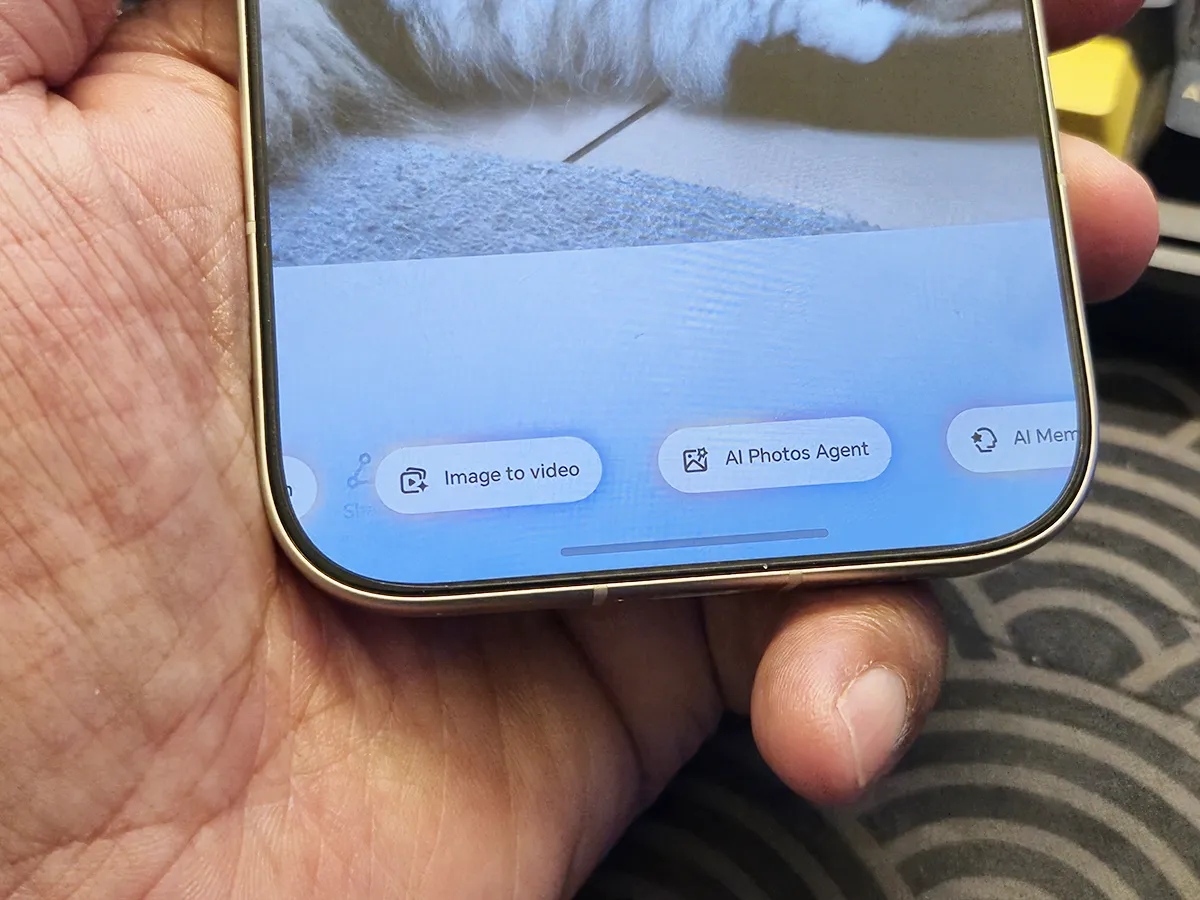
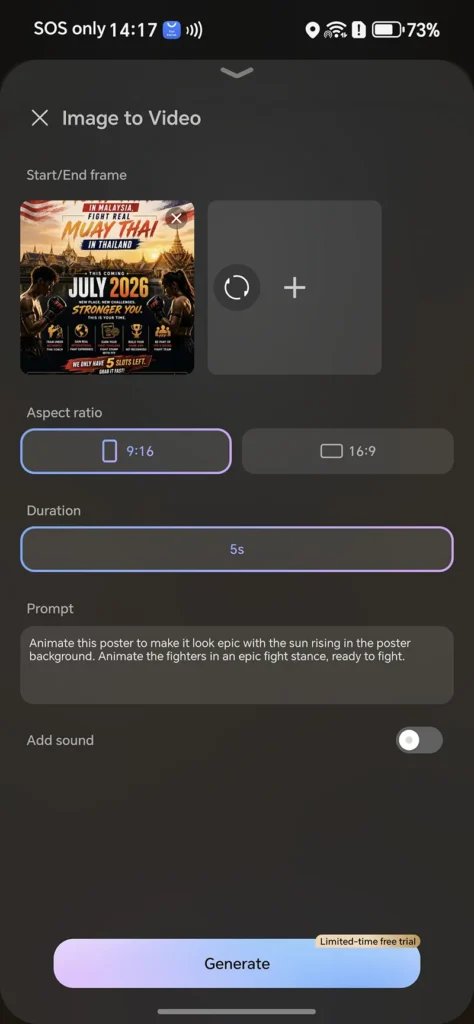
Getting started with Image to Video is surprisingly straightforward. Just pick a photo from your gallery, long press the AI Button on the side of the phone, and tap Image to Video from the menu that pops up at the bottom. From there, you can add a second photo, type in a prompt to animate your single shot, or do both together for more controlled results. When you’re happy with your setup, hit Generate, give it a moment, and that’s really all there is to it.
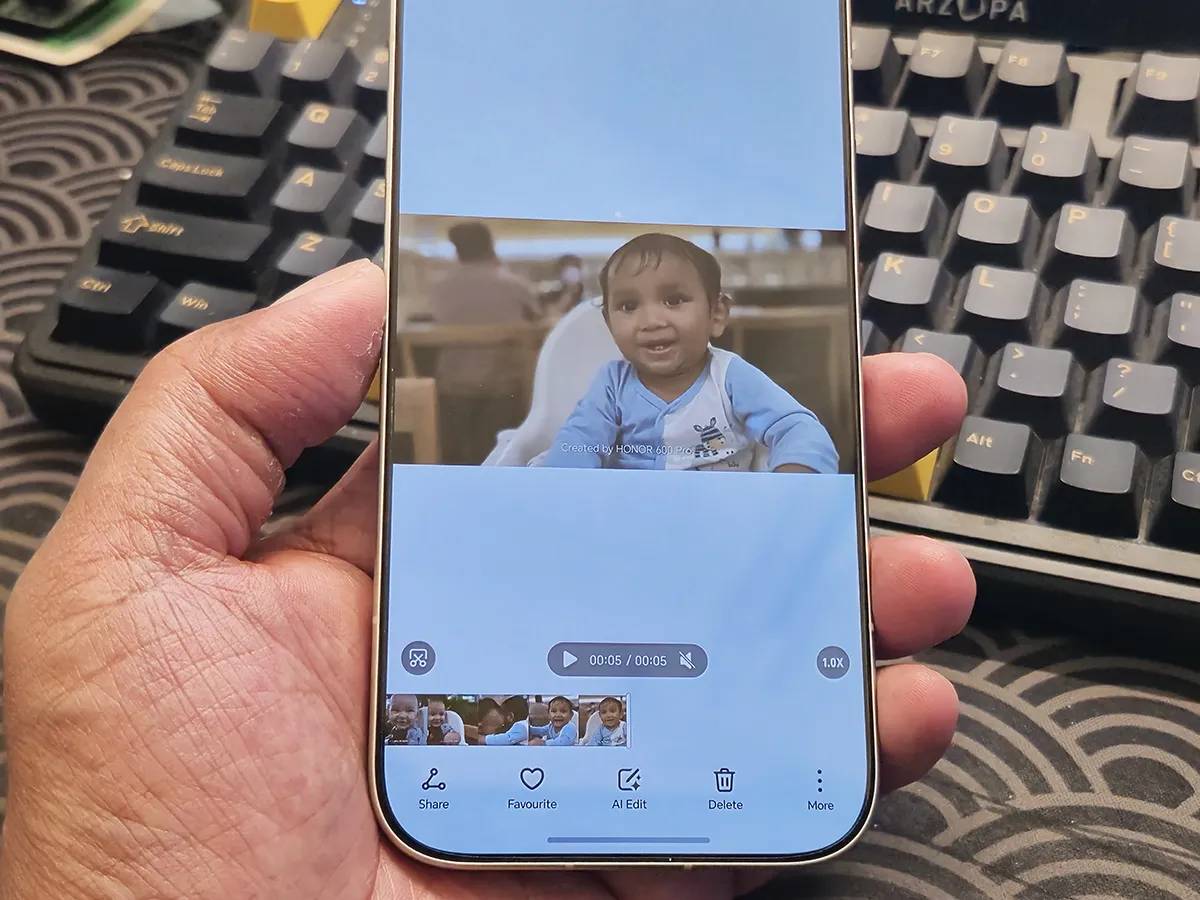
See my sample process below:


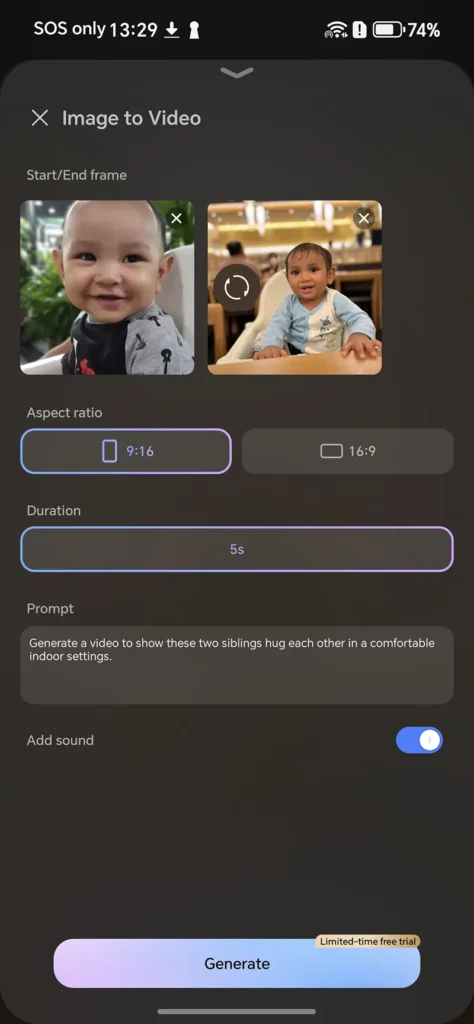
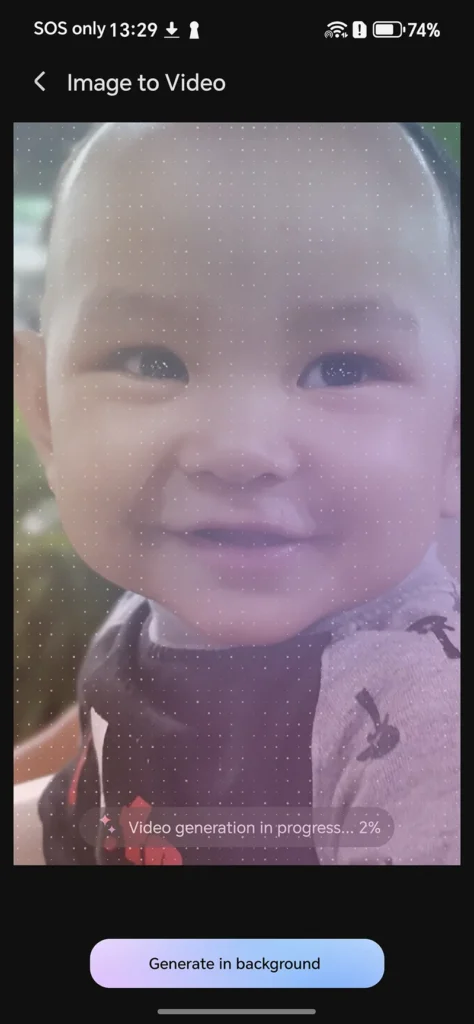
And here’s the result.
Here’s another sample:


Who Is This Feature Actually For?
Honestly, a wider audience than you’d expect.
For casual users, the templates make it dead simple. Pick one, upload a photo, done. No learning curve, no technical skills needed. The emotional templates especially, like combining old family photos or animating a memory with a loved one, are the kind of thing that could genuinely move people.
For content creators, the cinematic presets and custom prompt mode open up a lot of interesting territory. Being able to produce bullet time effects or dolly zooms from a single still image on your phone, without any desktop software or extra gear, is a meaningful shift in what’s possible on mobile.
The main limitation right now is the 10-generation daily cap, which might frustrate heavy creators. But for most people putting together social content or personal videos, that’s likely enough for a solid session.
Final Thoughts
AI Image to Video 2.0 is the kind of feature that sounds like a gimmick until you actually use it. The jump from version 1.0 to 2.0 is real: you now have creative control, a solid library of templates, proper cinematic effects, and the ability to write your own prompts. That combination makes it genuinely useful rather than just a novelty.
HONOR Malaysia hasn’t announced the official launch date for the HONOR 600 series just yet, but based on what I’ve seen so far, this is going to be one of those features that people actually show off to their friends.
Stay tuned for the full HONOR 600 Pro review coming up soon.
More info: https://www.honor.com/my/
The image + instruction input is the biggest upgrade for me. Being able to add text prompts alongside reference photos makes it way more useful than just letting the AI guess what to do. The on-device processing is a solid privacy touch too. Curious to see how the Malaysian pricing lands, because that will probably decide whether this stays a fun gimmick or becomes a daily driver for content creators.
A single impressive clip can hide the real product trade-offs. I would compare the feature with a fixed set of source images and score motion fidelity, identity preservation, instruction adherence, latency, failure rate, and cost per accepted result. Disclosing retries and manual edits would make the evaluation much easier to reproduce.